
How to Deploy React for Free on MS HOST
Easy, free deployment for React. Connect GitHub, follow this step-by-step guide, and go live in minutes on MS HOST. See also our deployment solution and FAQ for more help.
Deploying React shouldn't be complicated
Setting up servers, configuring build pipelines, and managing environment variables takes time away from building your product. MS HOST gives you a free, developer-first platform to deploy React applications from GitHub in minutes — no DevOps expertise required.
Why deploy React on MS HOST
Easy, free deployment
Connect your GitHub repo, select React, and deploy for free. MS HOST handles builds, hosting, and SSL automatically.
- No credit card required
- One-click GitHub integration
- Automatic HTTPS on every deploy
Built for modern workflows
Every push to your branch triggers an automatic build and deployment. Focus on code while MS HOST keeps your React app live.
- Continuous deployment from Git
- Live build logs in the dashboard
- Zero-downtime redeployments
Production-ready from day one
Environment variables, custom domains, and framework-specific defaults are configured for React out of the box.
- Secure environment variable management
- Framework-optimized build settings
- Instant rollback from the dashboard
Who uses MS HOST for deployment
Teams and solo developers ship React projects faster with free, reliable hosting.
Side projects and MVPs
Launch your React prototype for free and share a live URL with users or investors within minutes.
Production applications
Run real React workloads with automatic redeployments, environment secrets, and a dashboard to monitor every build.
Overview
React is the most popular JavaScript library for building user interfaces. MS HOST provides optimized free hosting for React apps built with Vite, Create React App, or other bundlers. Follow this guide to connect GitHub, configure your build, and deploy with HTTPS and live logs on MS HOST.
Video Tutorial
Setup Requirements
Node.js 18v to 24v
npm, yarn, or pnpm package manager
A React project ready for production
Step-by-Step Deployment
Name Your Project
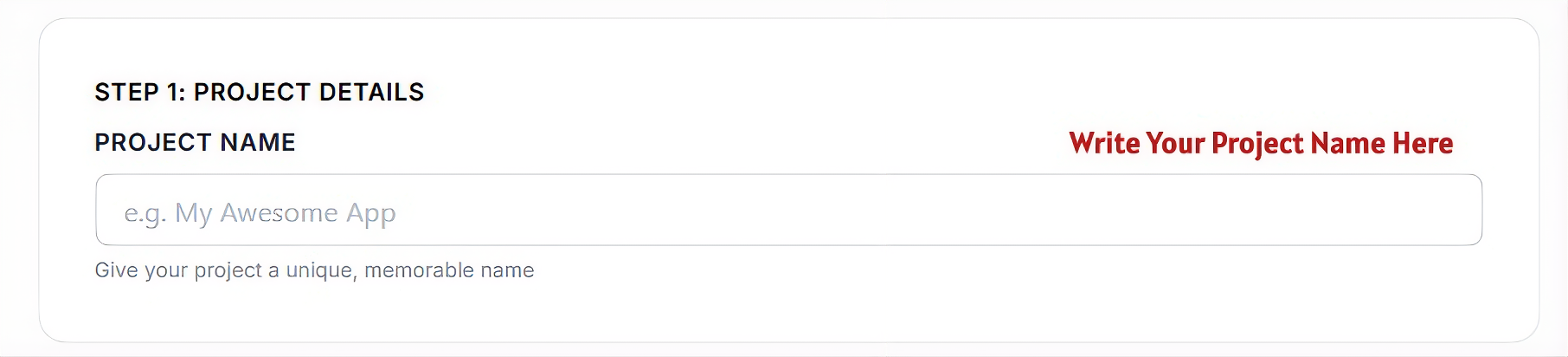
Start by giving your project a unique identity. This name will be used across your dashboard and deployment settings.
Project Name
Enter a unique, memorable name for your React project (e.g., 'React Dashboard').
The helper text below the input reminds you to identify your project uniquely. Choose a name that reflects the purpose of your application.
Connect Repository
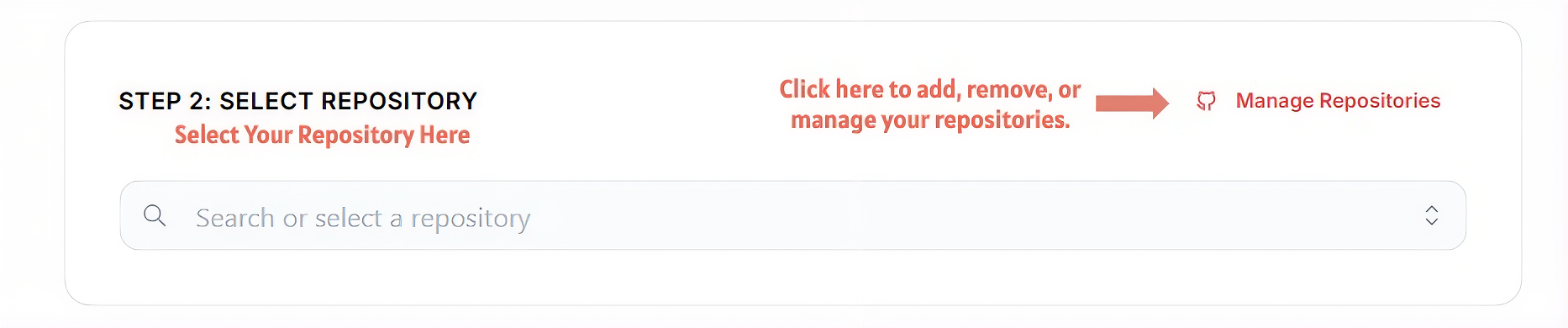
Connect your React source code by selecting a GitHub repository. MS HOST streamlines the integration process.
Search or Select a Repository
Use the dropdown to choose your React project. You can filter results by typing the repository name.
Manage Repositories
If your repo is missing, use the 'Manage Repositories' button to grant MS HOST access to specific projects in your GitHub account.
Select Framework
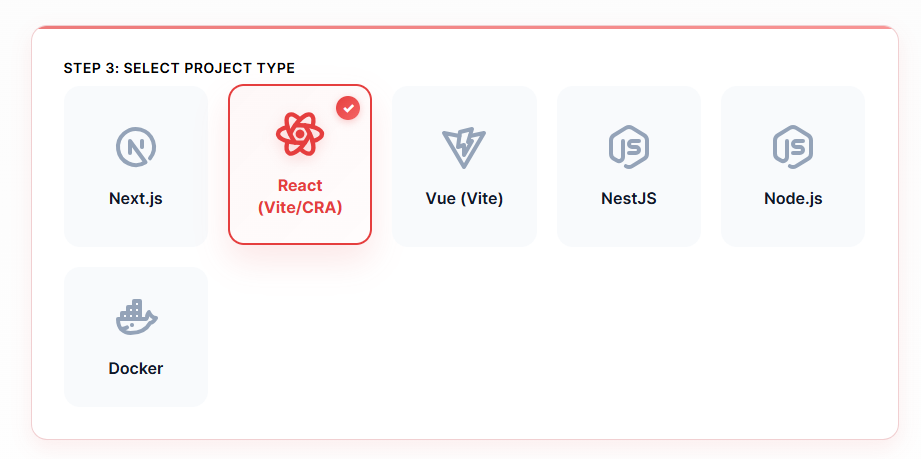
Confirm 'React' as your project's framework. This ensures MS HOST applies the correct build optimizations and static hosting rules.
React
Click the React card in the framework grid. Once selected, a checkmark will appear, and MS HOST will prepare the environment for a React deployment (optimized for SPA routing and static assets).
Configure & Deploy
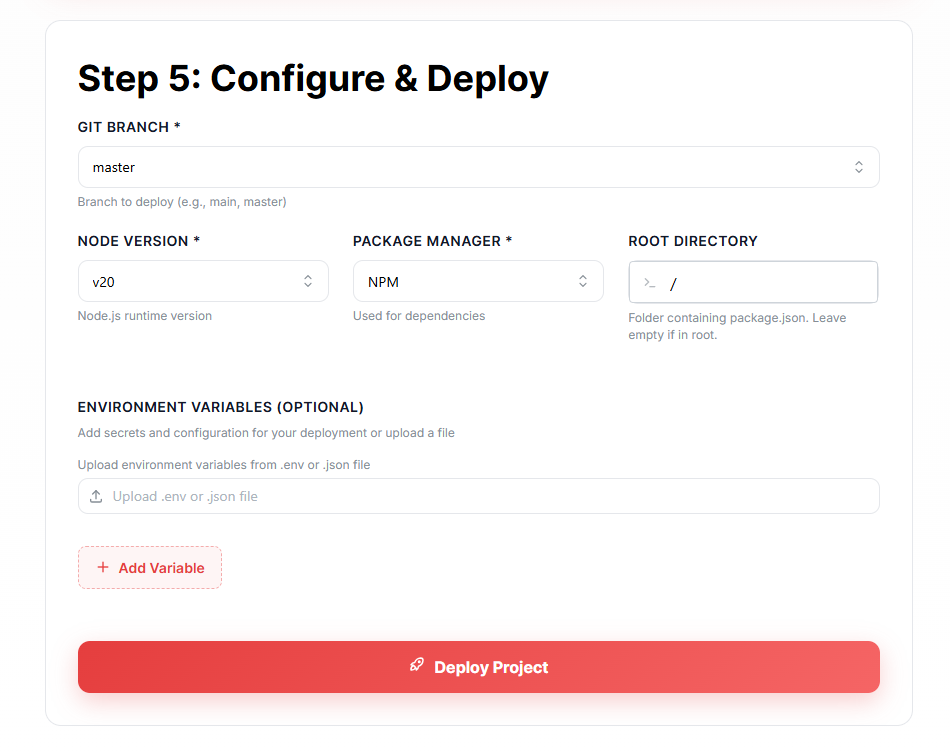
Finalize your build settings before pushing live. MS HOST defaults are optimized for React projects.
Git Branch
Choose the branch to deploy. Automatic redeployments happen on every push to this branch.
Node Version
Choose the Node.js runtime version (e.g., v20). MS HOST recommends the latest LTS version for stability.
Package Manager
Select your package manager: NPM, Yarn, or PNPM. This determines how dependencies are installed during the build.
Root Directory
Specify the folder containing your package.json. Leave as '/' if your project is in the repository root. Useful for monorepo setups.
Environment Variables
Add any API keys or configuration values your React app needs at runtime. You can also upload a .env or .json file for bulk configuration.
Deploy Project
Click the 'Deploy Project' button to start the build pipeline. MS HOST will build and host your static files globally.
Project Dashboard Guide
Once your project is deployed, you land on the Dashboard. This central control panel provides real-time insights and management tools for your application.
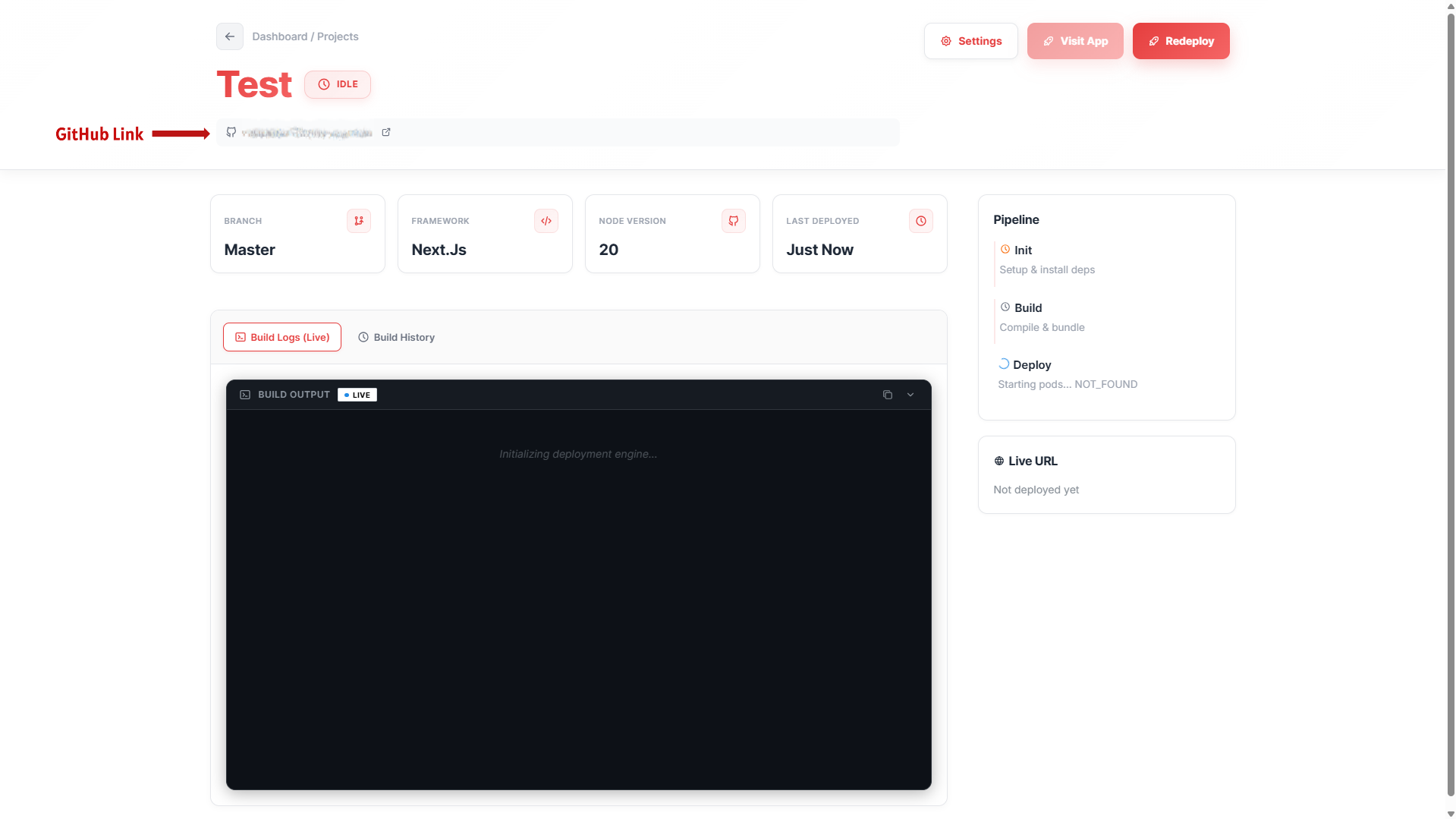
Project Name & Status
Located at the top-left, this displays your globally unique project name along with a real-time status badge (e.g., IDLE, BUILDING, LIVE, or ERROR) indicating the health of your application.
GitHub Link
Quickly access your source code. The dashboard provides a direct link to your connected GitHub repository and the specific branch currently being served.
Info Cards
Four dynamic cards give you a snapshot of your deployment: the active Branch, the selected Framework, the specific Node.js Version, and the precise time of the 'Last Deployed' successful build.
Build Logs (Live)
Watch your deployment in real-time. The integrated terminal streams live logs from our build engine, allowing you to monitor dependency installation and compilation as it happens.
Pipeline Status
Track the three critical stages of your app's journey: Init (setup & env prep), Build (source compilation), and Deploy (final orchestration and launch).
Live URL & Management
Once live, your production URL is displayed prominently. From the dashboard, you can also trigger a manual 'Redeploy' or access deep 'Settings' for advanced configurations.
Environment Variables
Manage your application secrets and configuration values. MS HOST provides a secure way to inject these into your runtime environment.
Adding Variables
Use the '+ Add Variable' button in the Configure or Settings screen to add secrets like API keys, database URIs, or internal flags manually.
Bulk Upload
Save time by uploading a `.env` or `.json` file. MS HOST will automatically parse the file and add all variables to your project in one click.
Security First
Never commit your `.env` files to GitHub. MS HOST securely encrypts all stored environment variables and injects them only during the build and runtime.
Automatic Deployment
Every change you push to your branch is automatically built and deployed. Focus on code, while we handle the distribution.
Push to Deploy
Every time you push code to your selected GitHub branch, MS HOST automatically triggers a fresh build and redeploys your application.
Zero Downtime
Our orchestration engine ensures your old version stays live until the new build is 100% healthy, providing a seamless transition with zero downtime.
Manual Redeploy
Need to trigger a build without a code push? Use the 'Redeploy' button on your dashboard to pull the latest code and rebuild immediately.
Updating Project Settings
Your project is not static. You can refine your configuration as your application grows.
Update Configuration
You can change your Node.js version, package manager, or build commands at any time from the 'Settings' tab on your project dashboard.
Project Scaling
As your project grows, you can adjust deployment resources and advanced platform settings from your project dashboard.
Tips & Common Mistakes
Vite vs CRA Output Directory
Vite outputs to `dist/` by default, while Create React App outputs to `build/`. Make sure the output directory in your MS HOST settings matches your bundler's output folder.
Set Env Vars in MS HOST Dashboard
Add your environment variables directly in the MS HOST project settings. MS HOST injects them into your build automatically.
SPA Routing is Handled Automatically
MS HOST handles single-page application routing — all unknown paths are redirected to `index.html`, so React Router and similar libraries work out of the box.
Don't Commit node_modules
Ensure `node_modules/` and `dist/` or `build/` are listed in `.gitignore`. MS HOST installs dependencies and builds the project fresh on every deployment.
Ready to deploy your React app?
Join developers using MS HOST for free, easy deployment. Connect GitHub and go live today.